How I Do Tech Presentations
Intro
I use keynote to present, because it is simple and it’s default on OSX which i use for writing code.
I tried different tools, but i stuck with it for last 12 years or so for all my talks.
Syntax code highlight
Important part of any tech presentation is to show code, of course you can just screenshot it. But the problem with screenshots is if you find a bug in your slides, you need to fix it in code snippets and update the slides, so recreate all related screenshots. I found it too annoying, so I realised after some time that it’s better to have everything (mostly everything) on slides as text. You can change font, color, or size.
Then I discovered RTF format / output:
RTF (Rich Text Format) is a Microsoft-developed, cross-platform file format that allows for document interchange between different word processors and operating systems.
It’s when we copy something and paste to keynote it pastes it as text but keeps formatting.
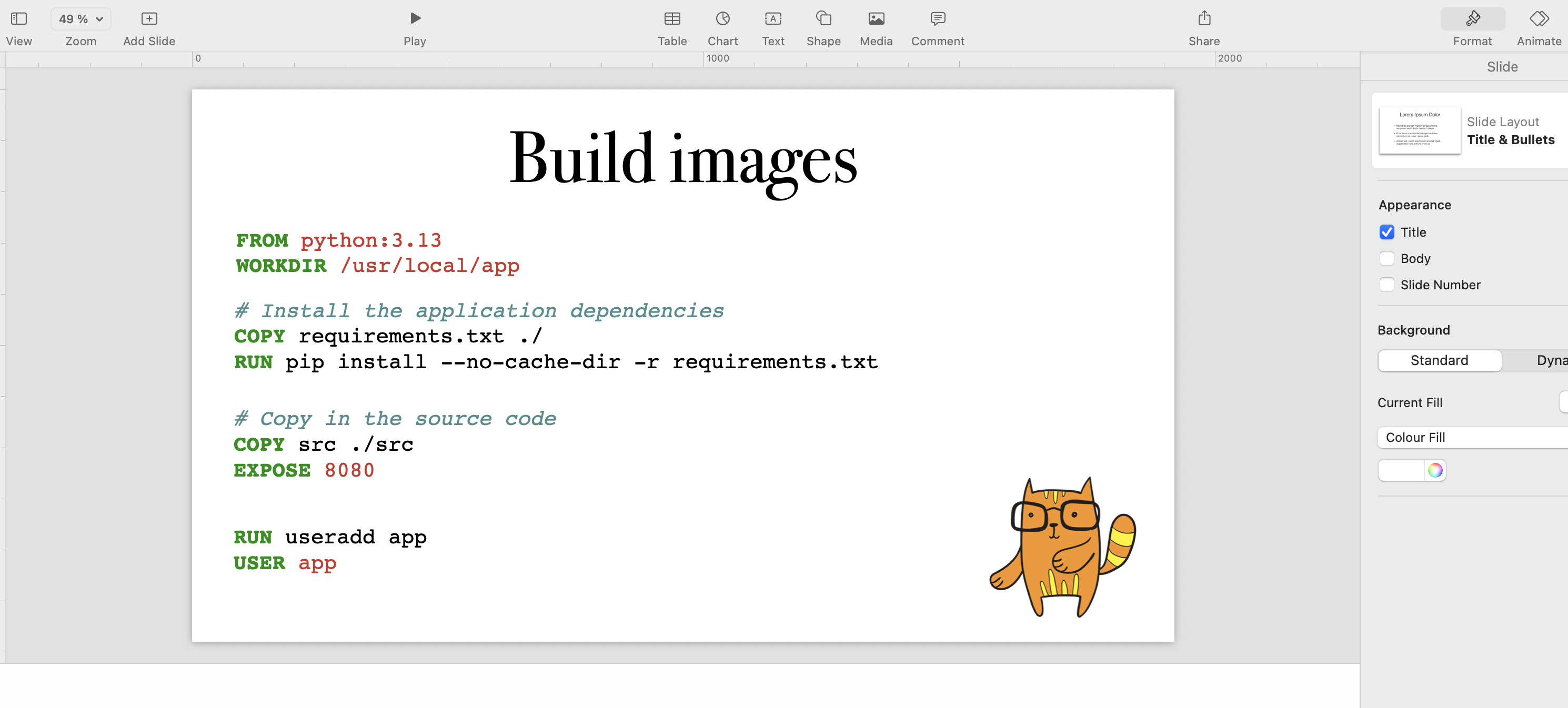
Assuming I have a Dockerfile locally and if i run:
pygmentize -f rtf Dockerfile | pbcopy
and paste to keynote:
Share terminal on the stage
Usually when you do presentation, the default setup is either extend your screen or mirror screen. And of course you need your presenter notes, unless you remember everything. So the only option for me is extending screens. But if you want to share your terminal application, you are in trouble. Because you need to switch to mirror screen, and usually it slows you down.
What I realized recently is—you can create two terminals and mirror what you are typing in one terminal into another one. In this case, you can keep extended screens and switch between slides and terminal quickly. A big benefit is that you see what you type. Also, it’s important to move the second terminal onto the extended screen.
Okay, let’s show you what it looks like. By the way, there are few ways of doing it.
Option A: screen
Recently I discovered -x option for screen tool.
From
man screen: -x Attach to a not detached screen session. (Multi display mode).
So you run screen -x in one of the instances of terminal and open second
one and run screen and it’ll mirror everything you type.
Option B: tmux
You create a new session in one terminal:
tmux new -s mysession
Then in the second terminal you attach to the same session:
tmux attach -t mysession
And voilà, you can type in one terminal and see it in another one.